

- Built-in tools: Pre-configured tools provided by model providers (like OpenAI and Anthropic) that are ready to use. Use built-in tools when you need common capabilities like web search or code interpretation.
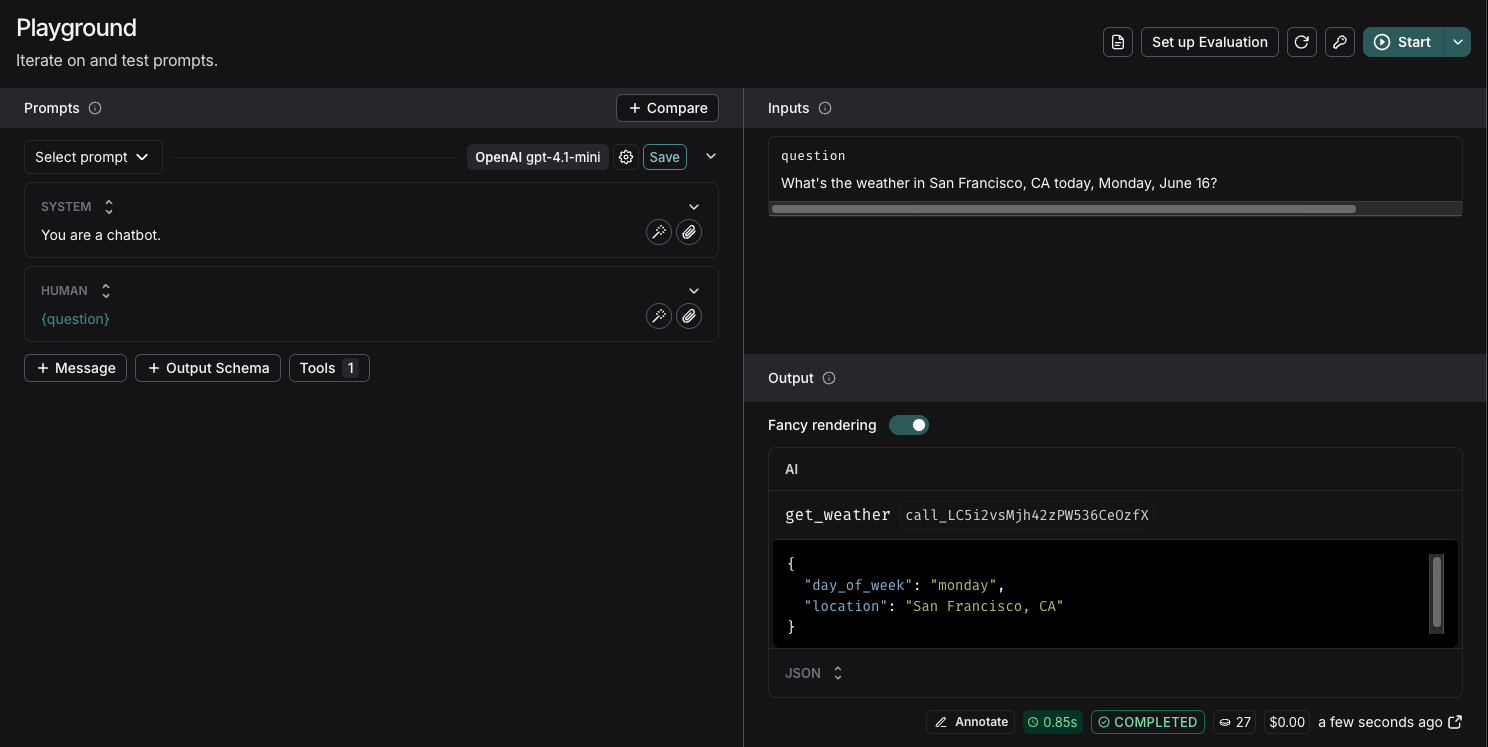
- Custom tools: Functions you define to perform specific tasks. These are useful when you need to integrate with your own systems or create specialized functionality. When you define custom tools within the Playground, you can verify that the model correctly identifies and calls these tools with the correct arguments.
Built-in tools
The Playground has native support for a variety of tools from OpenAI and Anthropic. If you want to use a tool that isn’t explicitly listed in the Playground, you can still add it by manually specifying itstype and any required arguments.
OpenAI tools
- Web search: Search the web for real-time information.
- Image generation: Generate images based on a text prompt.
- MCP: Gives the model access to tools hosted on a remote MCP server.
- View all OpenAI tools.
Anthropic tools
Add and use tools
The Playground lets you quickly add tools to any prompt with a single click. You can choose from built-in tools provided by model providers like OpenAI and Anthropic, or define your own custom tools tailored to your specific needs. Custom tools are saved to the current prompt by default. You can save them to the workspace-wide tool registry to reuse them across prompts without recreating them.Add a tool
To add a tool to your prompt, click the + Tool button at the bottom of the prompt editor.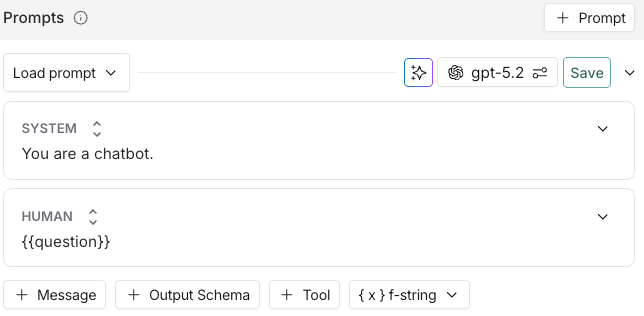
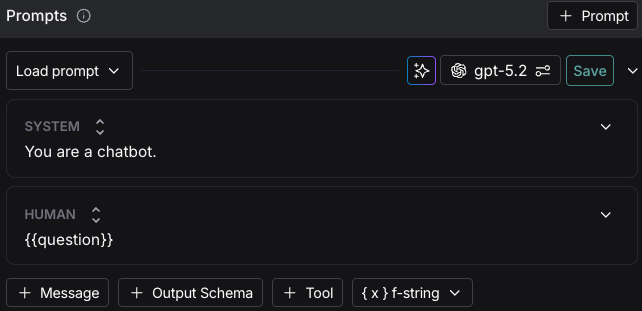
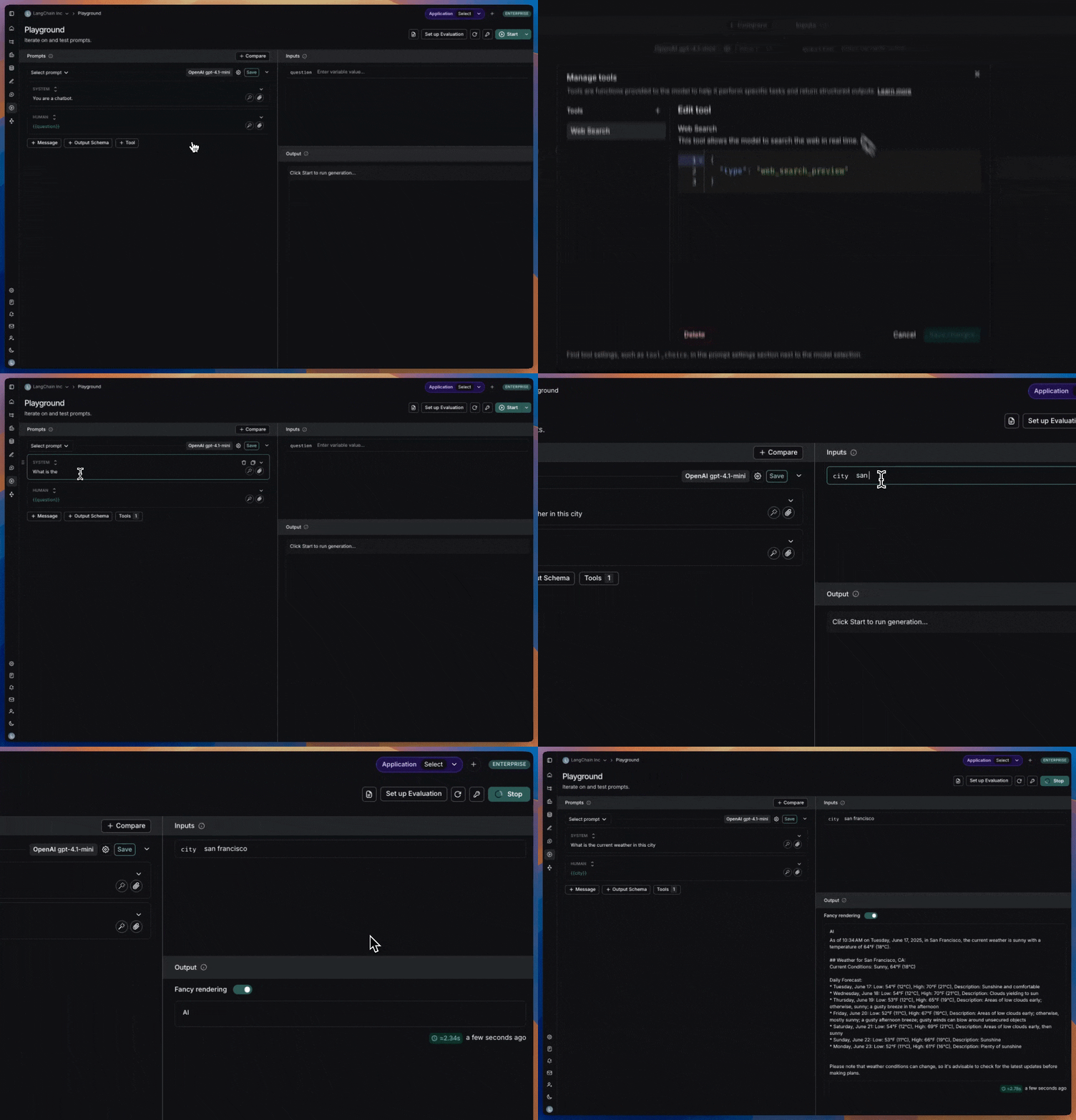
Use a built-in tool
- In the tool section, select the built-in tool you want to use. You’ll only see the tools that are compatible with the provider and model you’ve chosen.
-
When the model calls the tool, the Playground will display the response.
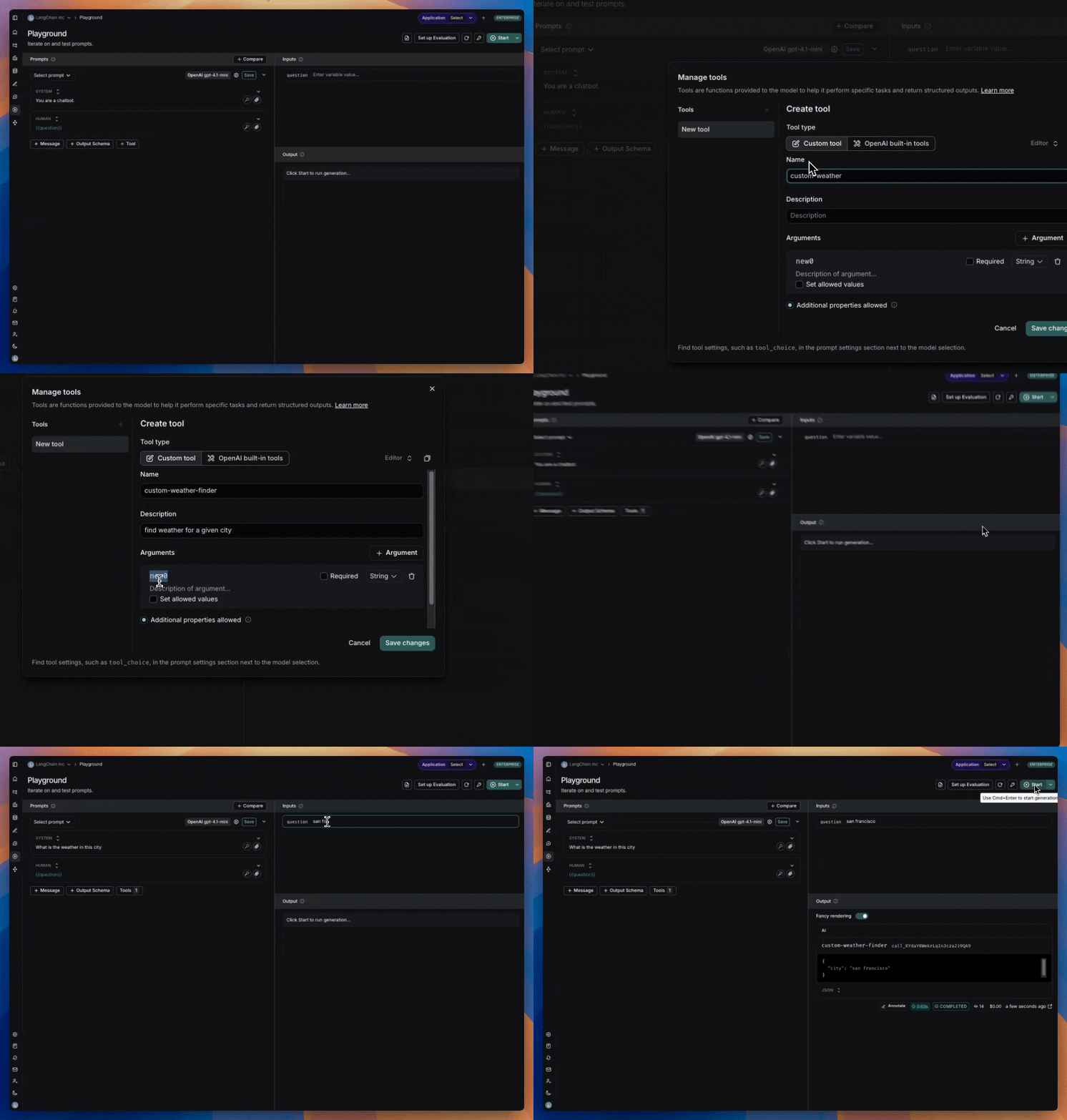
Create a custom tool
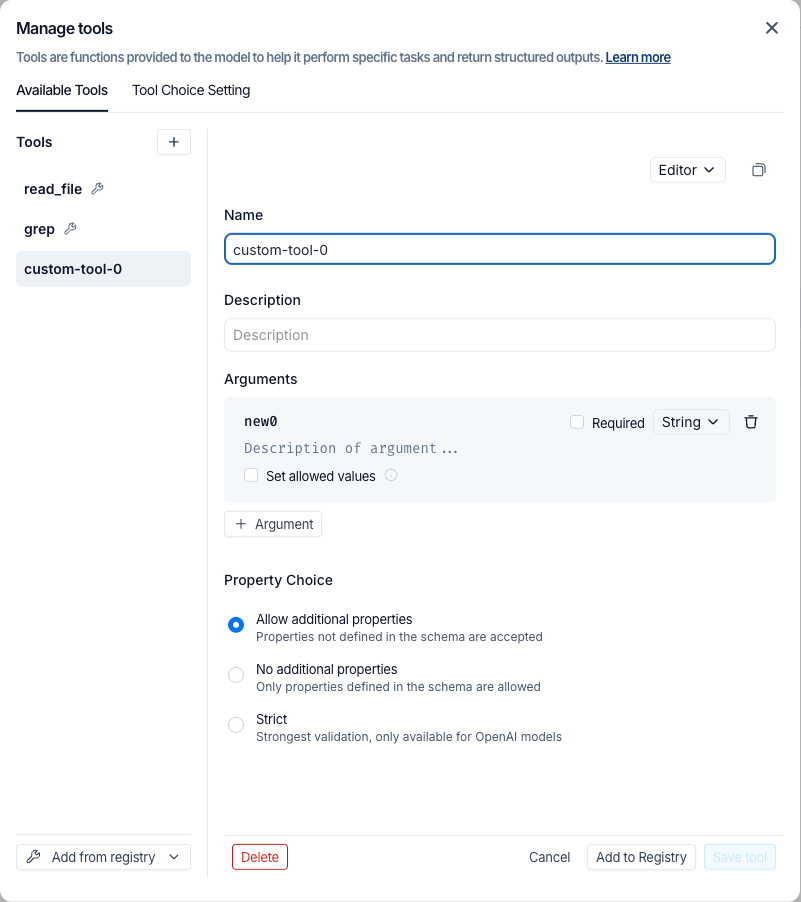
To create a custom tool, you’ll need to provide:- Name: A descriptive name for your tool.
- Description: Clear explanation of what the tool does.
- Arguments: The inputs your tool requires.
Manage tools with the registry
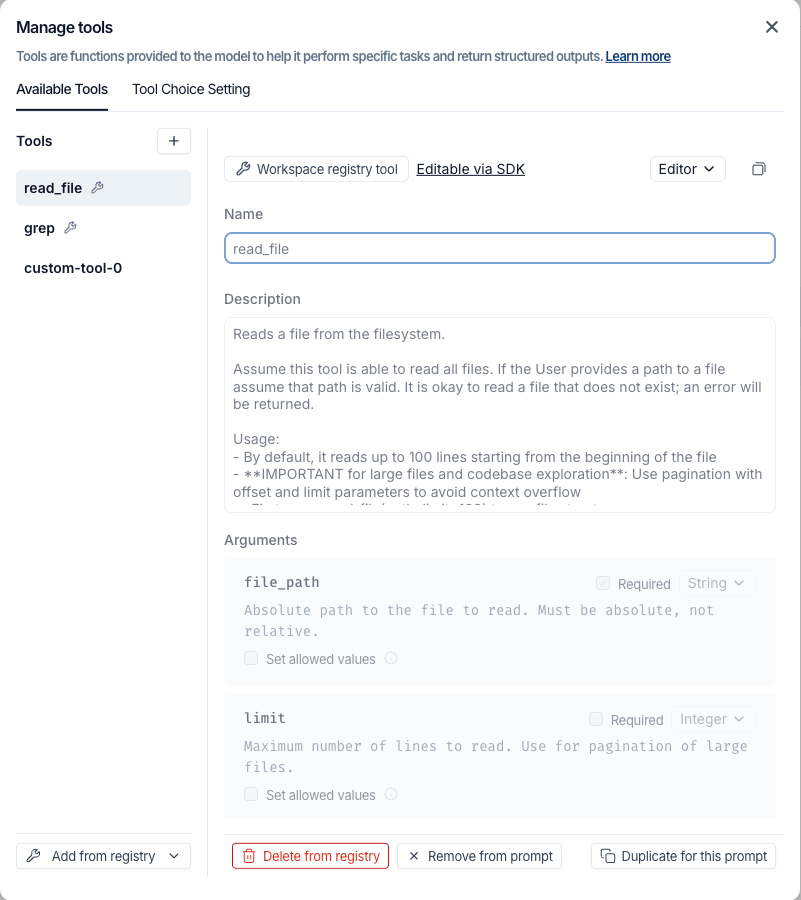
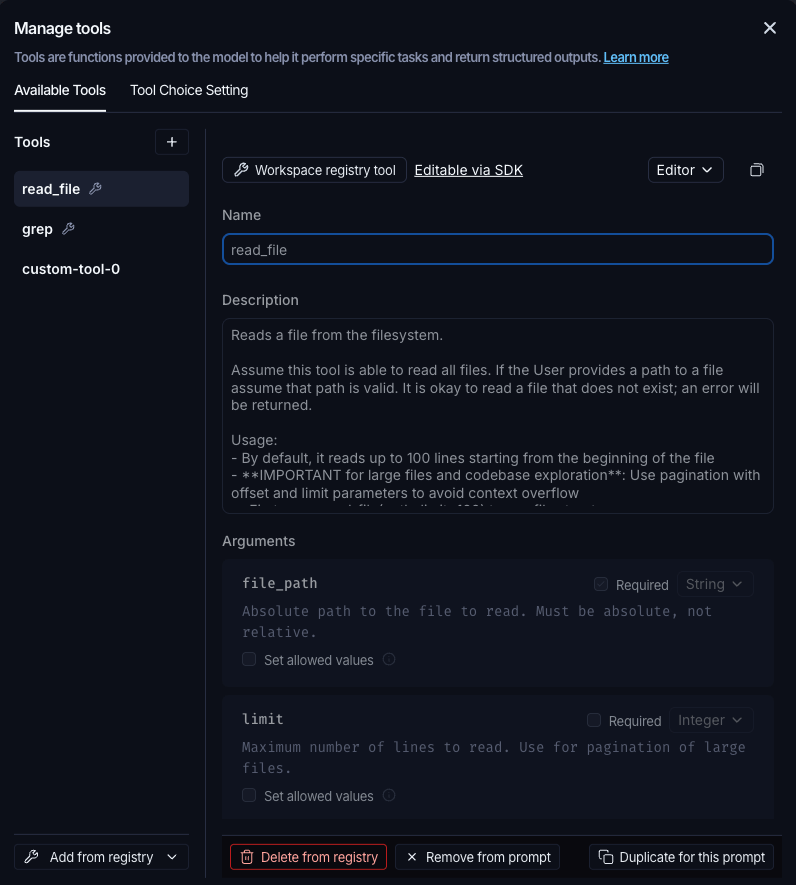
The Playground includes a workspace-scoped tool registry for saving and reusing tools across prompts and sessions. When you create a custom tool, you can save it to the current prompt only, or save it directly to the registry. Saving to the registry also adds the tool to the current prompt. Click the + Tool button in the Playground to open Manage tools. From the Available Tools tab, you can:- Click + in the tools list to create a new tool.
- Click Add from registry to add an existing registry tool to the current prompt.
- Click a tool in the list to view and edit it.
-
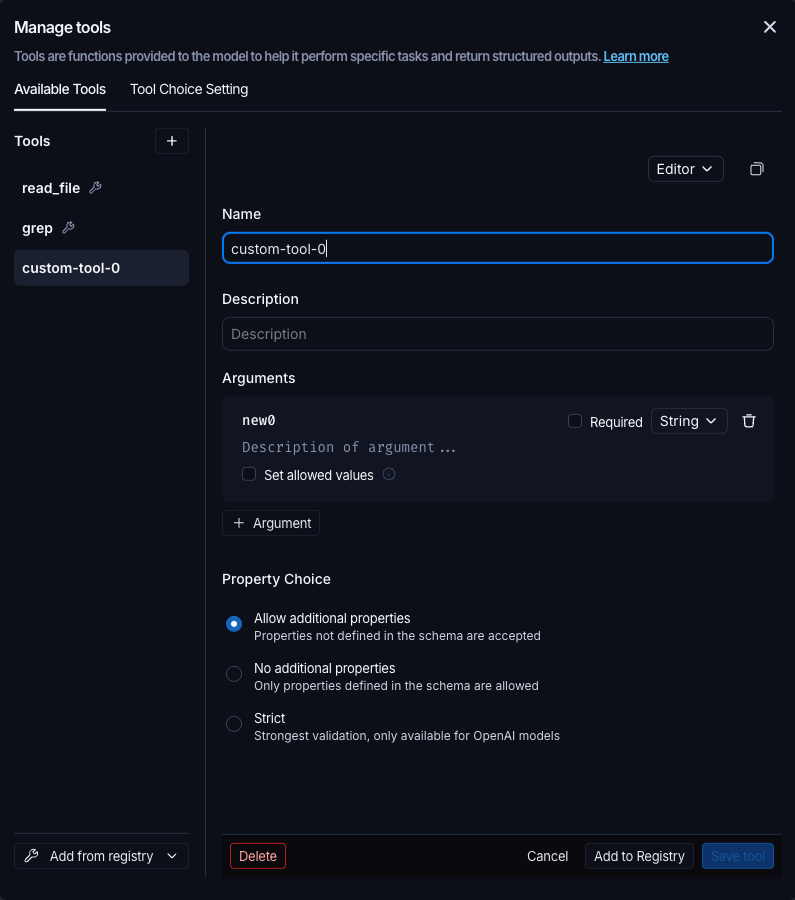
Prompt-local tools: Click Add to Registry to save the tool to the workspace registry, or Delete to remove it from the current prompt.
-
Registry tools: Click Remove from prompt to detach the tool from the current prompt without affecting the registry, Duplicate for this prompt to create a prompt-local copy independent of the registry version, or Delete from registry to remove it from the workspace registry entirely.
Tool choice settings
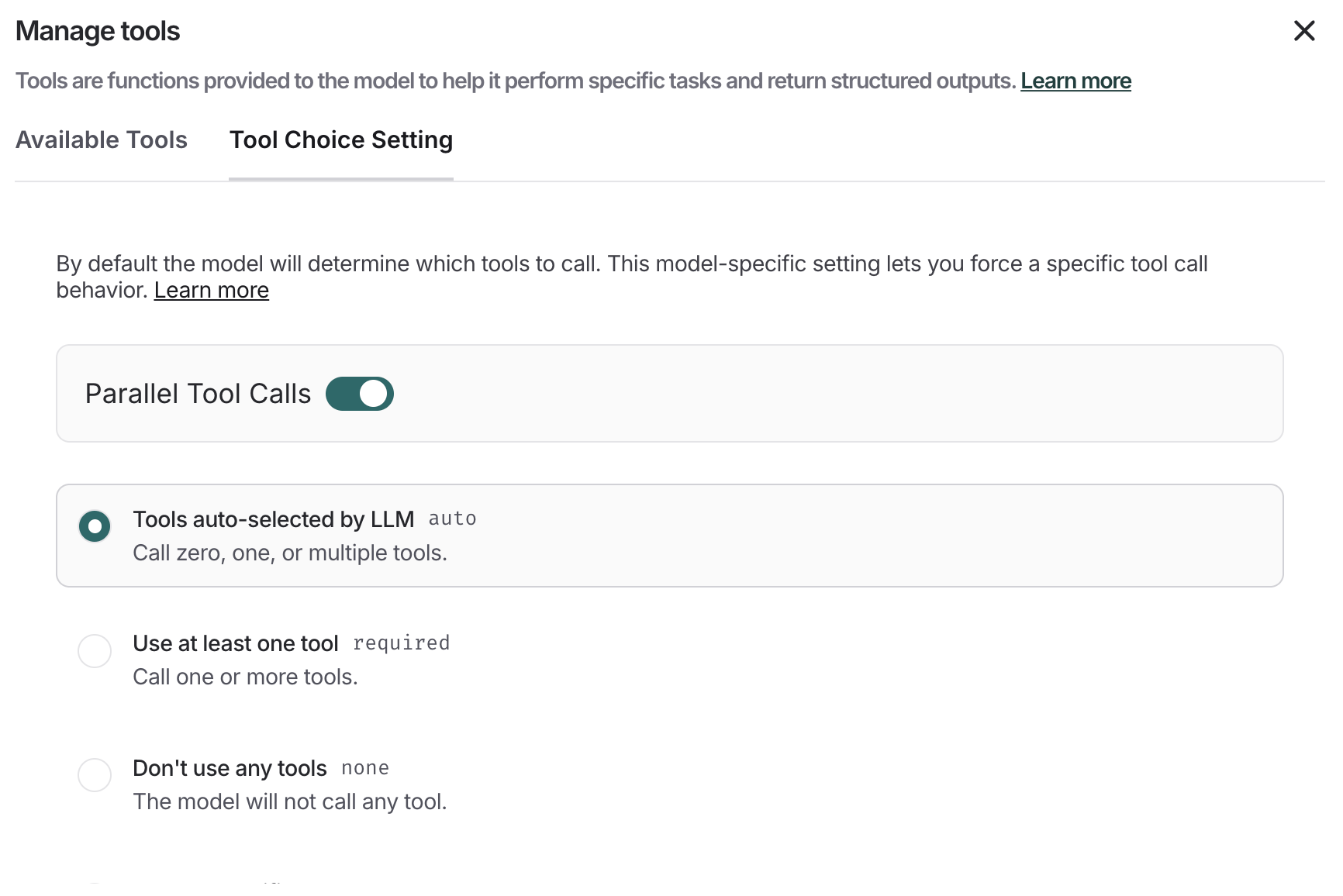
Some models provide control over which tools are called. To configure this:- Select + Tool under the prompt editor.
- Navigate to the Tool Choice Setting tab.
- Select your tool choice.
Connect these docs to Claude, VSCode, and more via MCP for real-time answers.